Dynamic Arrays are a LinkarServer feature.
For more information on Dynamic Arrays consult the LinkarServer Manual.
The following paragraphs onlny explain how to manage Dynamic Arrays through LinkarWS. In the next section there is an example on how to use the Dynamic Arrays through LinkarWS.
Dynamic Arrays are controlled through LinkarServer but LinkarWS also allows some management. It is possible to create, modify and delete Dynamic Arrays, as well as import through both MV file and plain text file. However these actions are only available through a running LinkarServer Enpoint.
As such, before any Dynamic Array maniputation can be done, it is required to select an EntryPoint. Once selected every action made on the Dynamic Array through LinkarWS will be synchronized with LinkarServer through the selected EntryPoint.
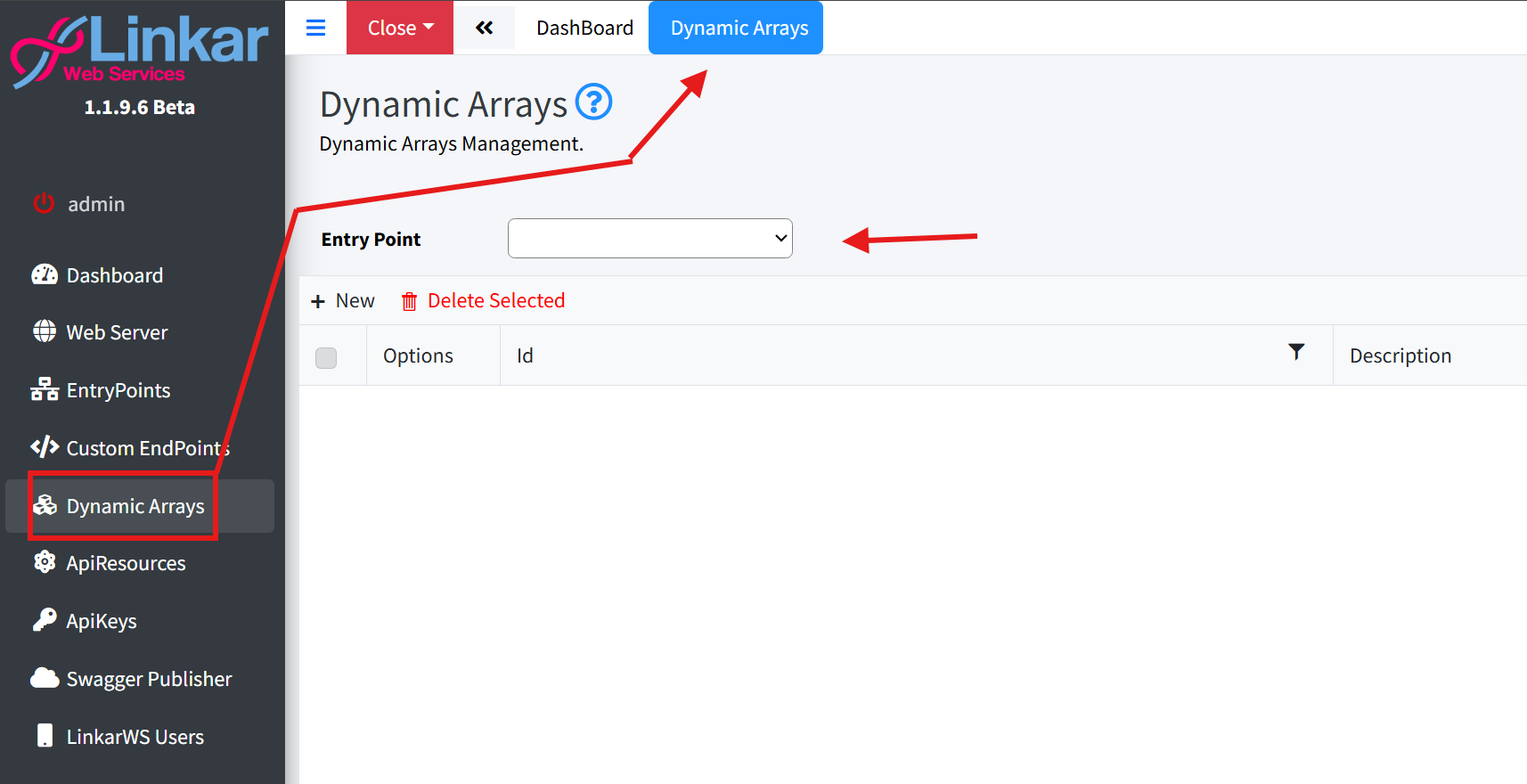
Initially there will be no Dynamic Arrays in LinkarServer. When selecting an EntryPoint from a LinkarServer installation that has any existing Dynamic Arrays those will be recovered and shown in the grid, as seen in the following image:
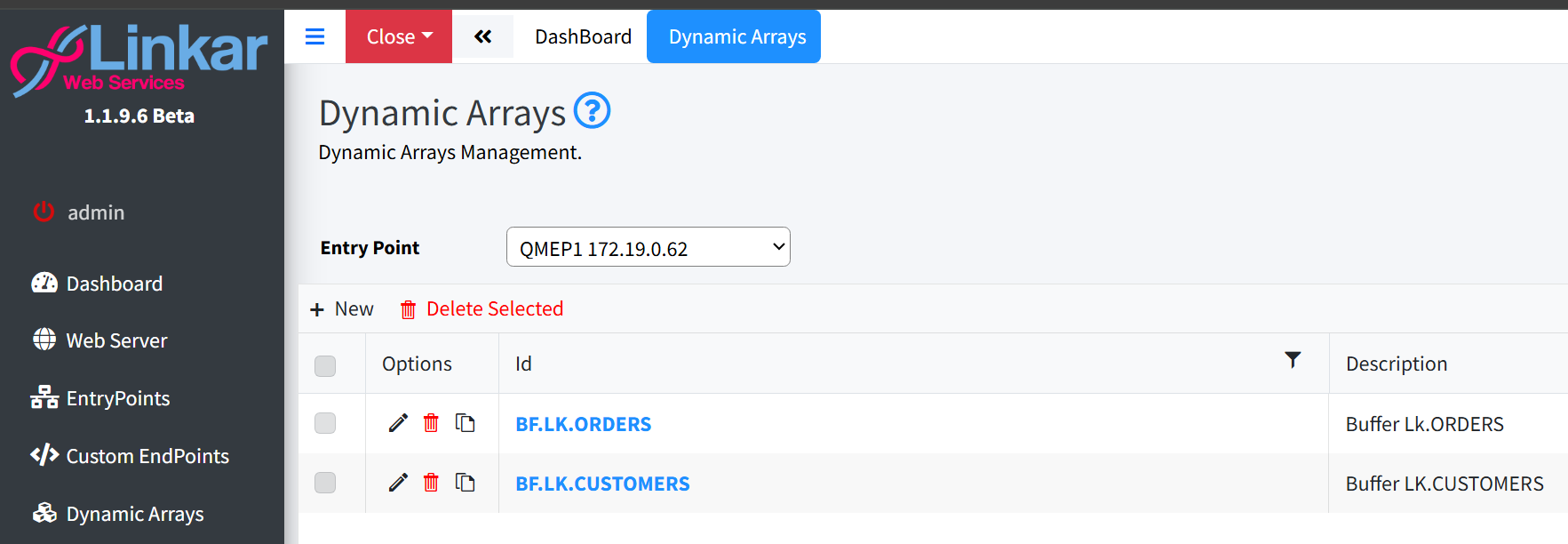
New Dynamic Arrays are added through the "+ New" button. When clicking this button a new view will be shown where the Dynamic Array can be created in different ways:
•Manually. You can define the properties for the Dynamic Array by manually typing the data in each column. It is required to fill the property name as well as the attribute number and the data type. The multivalue and subvalue group will also have to be filled in such cases.
•Importing from plain text file. It is possible to create the Dynamic Array by importing a text file that has the data for each column separated by comma, semicolon or tab characters.
•Importing from an MV file. Instead of inputting manually the Dynamic Array can be constructed by parsing the MV file's dictionaries directly into the grid.
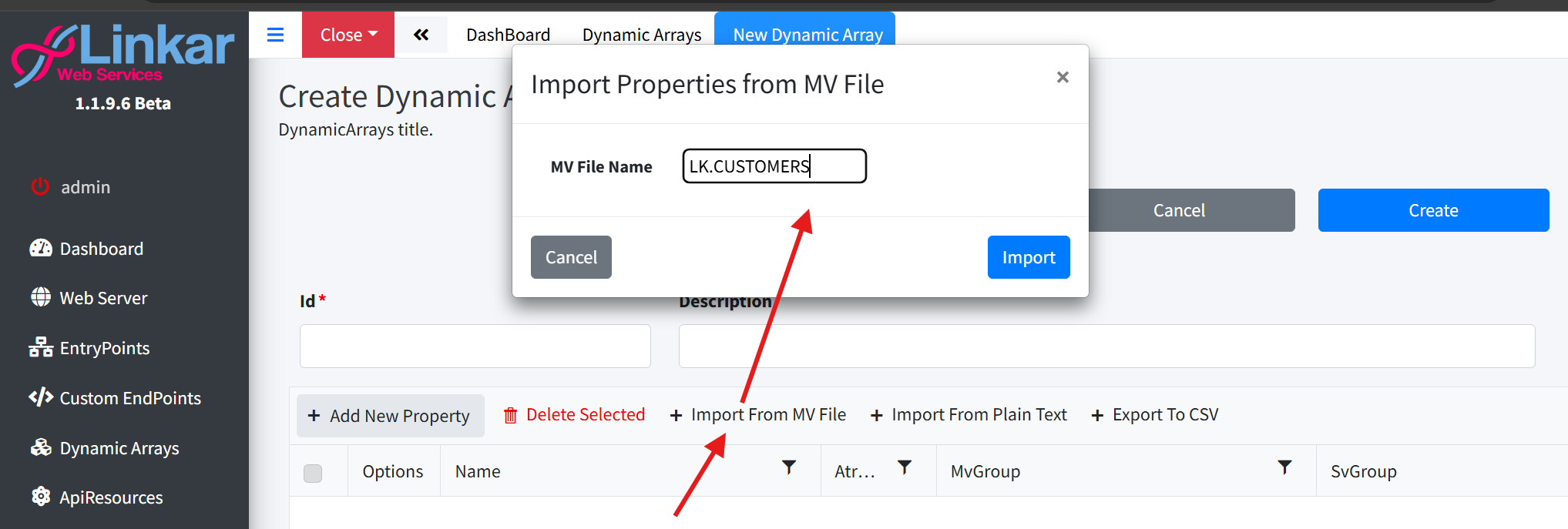
Once the Dynamic Array has been constructed it must be saved by clicking on the "Create" button for new records or the "Update" button for existing records. Both options will send the data to LinkarServer through the EntryPoint.
